 GEOLY Docs
Create your GEOly account and start monitoring
Register with Google or email, confirm your organization, and start your first GEOly monitoring workflow.
Create your GEOly account and start monitoring
Open GEOly registration to create an account. You can choose Sign Up with Google, or enter your name, email address, and password. The referral-code field is optional. Follow the email-verification or sign-in instructions shown after submission; the next screen depends on the sign-up method and your account state.
If you received an organization invitation, open that invitation link and use its sign-up or sign-in path. A referral code attributes a registration; it does not grant access to another organization's brands or data.
After you sign in
- Check which organization and brand are active. If you were invited to a team, confirm you are in the intended organization before editing anything.
- Set up or select the brand you are authorized to use. Confirm its website and matching terms under Settings → Brand. Available actions depend on your role and plan.
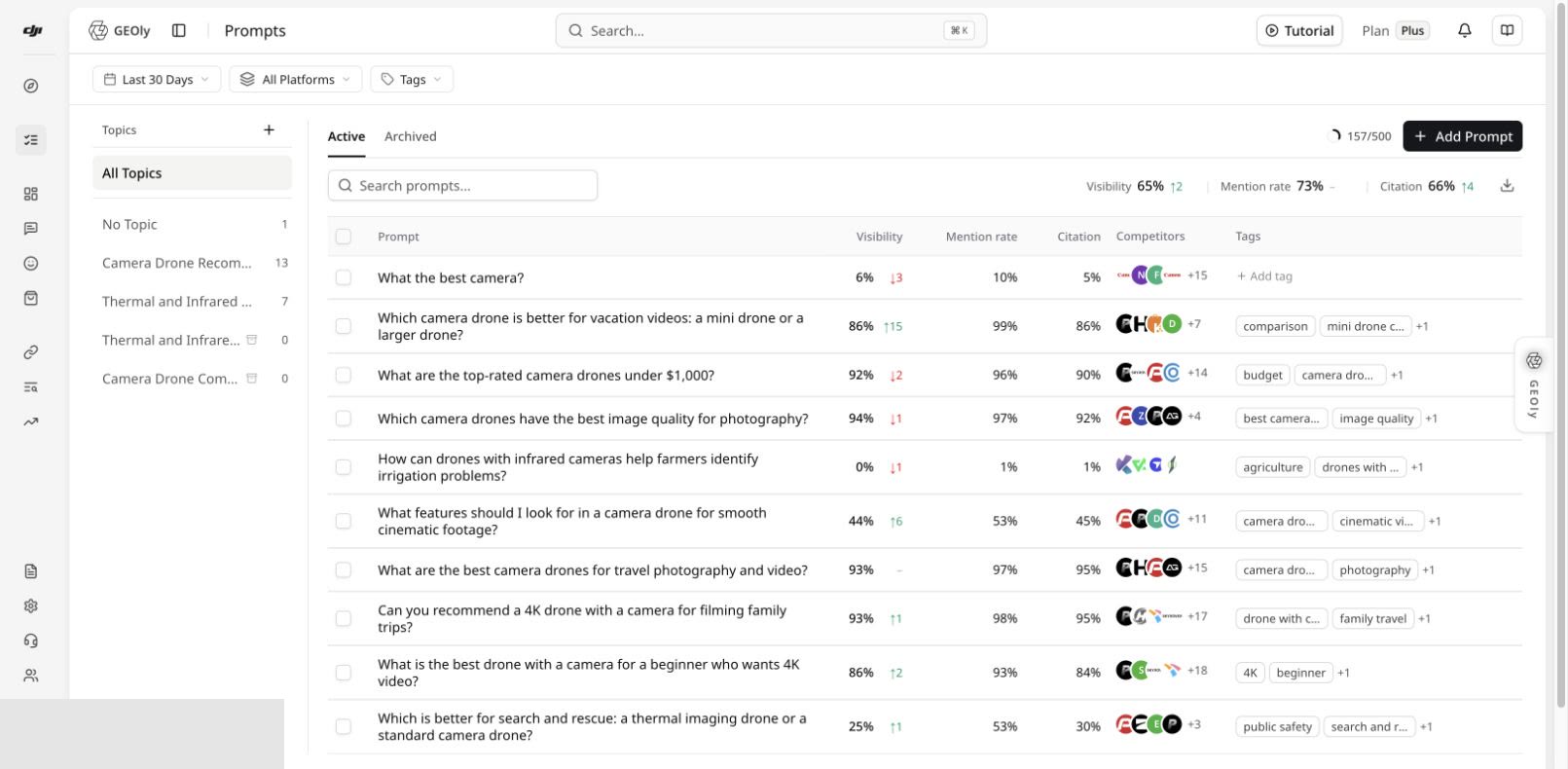
- Go to Monitoring → Prompts to add questions your customers might ask AI systems. Organize them by topic, then review records after collection completes. A newly added prompt is not itself a completed AI answer.
- Open Performance → Overview to review the selected brand, date range, platform and topic. Use the prompt records and original answers to inspect the evidence behind an overview metric.
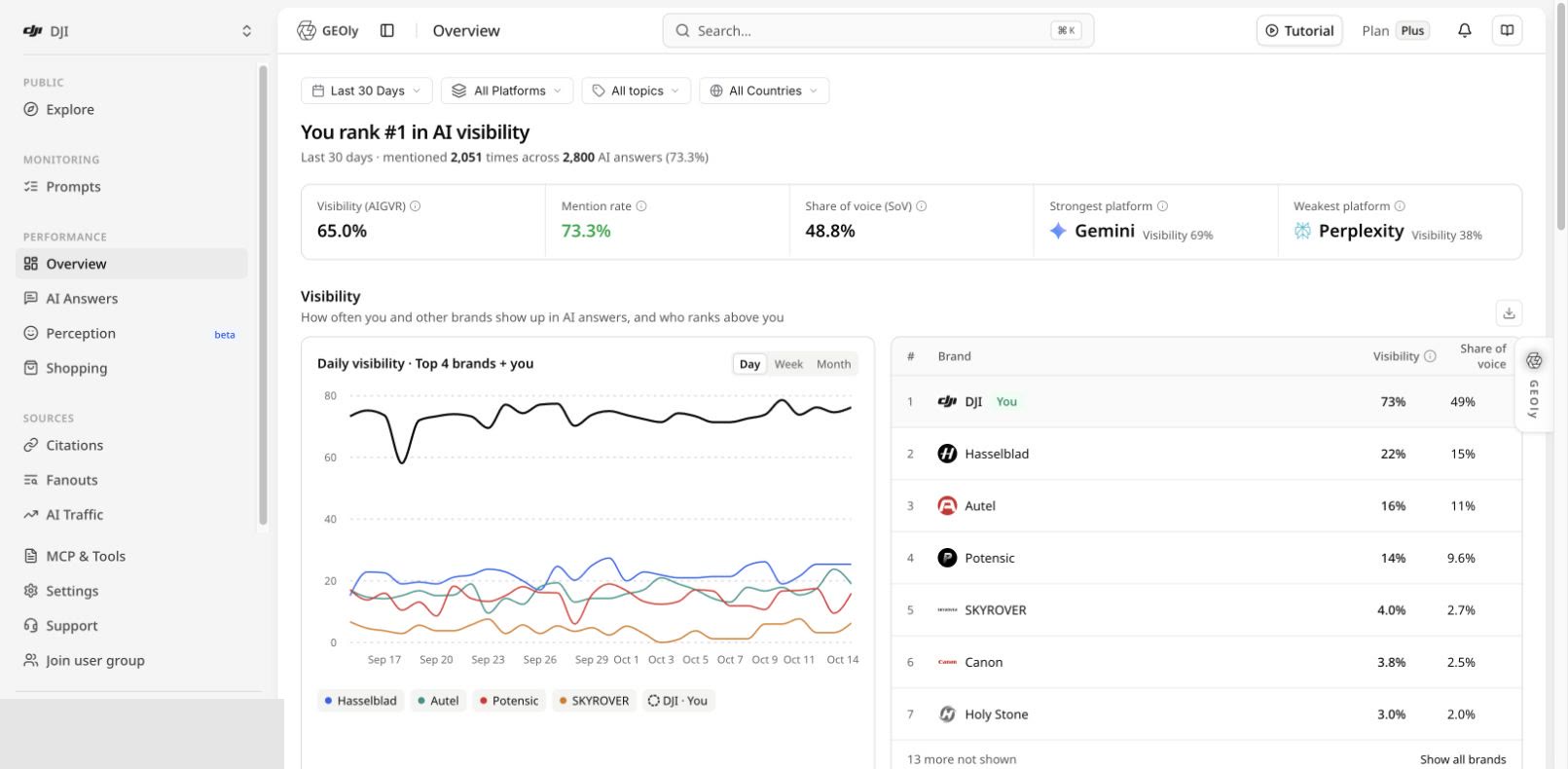
These two images show the follow-up workflow after sign-in, not the registration form. Their example data is illustrative; your workspace and available records will differ.
If something looks wrong
- If your invitation does not lead to the intended organization, use the original invitation link or ask its sender to check it. Do not use a referral code as a substitute for organization access.
- If no brand or prompt records appear, check the active organization and brand, your role, and whether monitoring has finished collecting data.
- If the registration form or verification step differs from the images in an older guide, follow the current form.