 GEOLY Docs
GA4 Operation Manual —— AI Agent Analytics
GA4 Operation Manual - AI Agent Analytics
This document explains how to connect Google Analytics 4 (GA4) to GEOly and how to read GA4 traffic data inside AI Agent Analytics.
1. Access Point
- Log in to GEOly.
- Open Agent Analytics from the sidebar.
- If the current brand is not connected to GA4, the page will show a connection or analytics-platform setup flow.
2. Connect GA4
Step 1: Connect Your Google Account
- Find the Google Analytics connection card.
- Click Connect.
- Sign in with the Google account that has access to the target GA4 property.
- Grant permission to view Google Analytics data.
- After authorization, GEOly redirects back to the analytics page.
The Google account used for GA4 does not need to match your GEOly login email, but it must have access to the GA4 property you want to connect.
Step 2: Select and Bind the GA4 Property
- Choose the GA4 property from the property selector.
- Confirm the selection.
- GEOly will display traffic data for the selected property once the binding is complete.
3. View GA4 Traffic Data
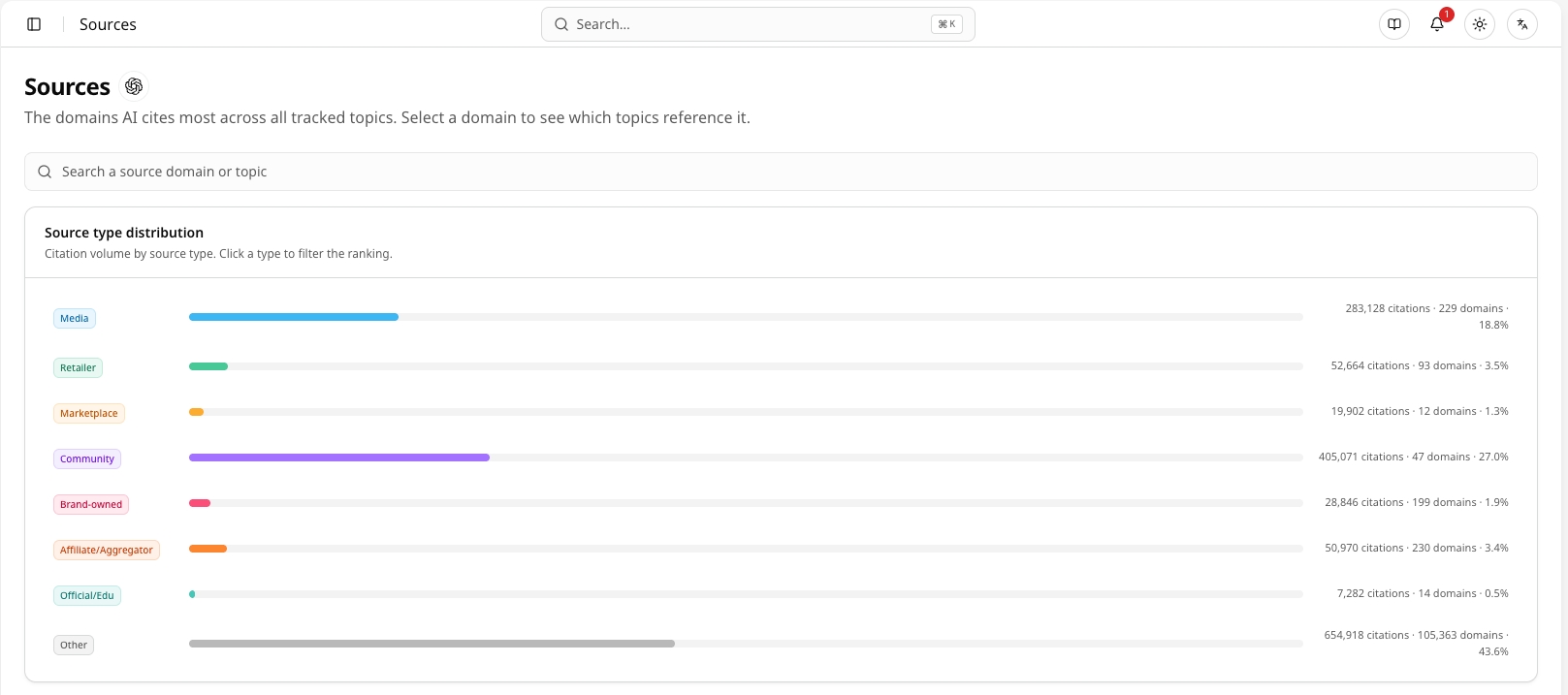
In Agent Analytics, GA4 data can include sessions, page views, source/channel distribution, and comparison metrics depending on the selected property and time range.
- Time Range: Use supported ranges such as 7 days, 30 days, or 90 days where available.
- Comparison Mode: Compare against the previous period, previous month, or previous year when supported.
- Traffic Distribution: Review where traffic is coming from and how AI-related referrals contribute to the site.
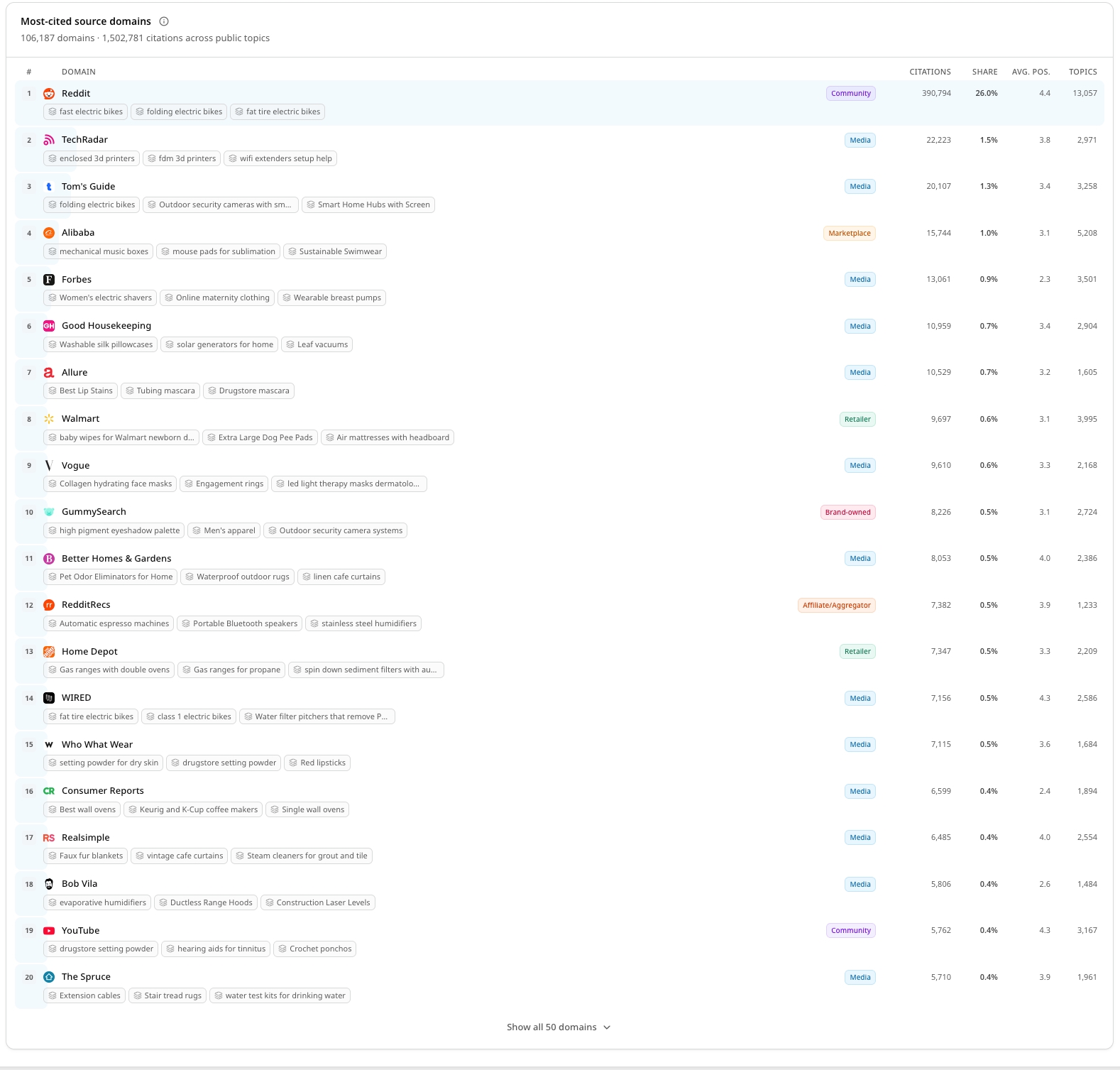
Page-level views can help identify which URLs receive traffic and how page engagement changes over time.
- Page Views: Shows which pages are receiving the most views.
- Sessions: Shows traffic volume by page or source.
- Bounce / Engagement Metrics: Available when returned by the connected GA4 property.
- Traffic Sources: Helps separate AI-referred, organic, referral, and other source groups when the data is available.
4. Switch GA4 Properties
If you need to change the selected GA4 property:
- Open the analytics settings or property selector in Agent Analytics.
- Select another authorized GA4 property.
- Confirm the switch and wait for the data view to refresh.
5. Query GA4 Through GEOly MCP
After GA4 is connected for a brand, authorized MCP clients can query GA4 data through GEOly.
- Use get_ga4_traffic_data for sessions, page views, distribution metrics, and comparison data.
- Use get_ga4_page_data for page-level views, sessions, bounce rate, and traffic-source breakdowns.
- Optional parameters include property_id, time_range, and comparison_mode.
- If property_id is provided, it must be one of the GA4 properties selected for the brand.
For MCP setup, use the GEOly endpoint:
https://app.geoly.ai/api/mcp
OAuth-capable clients should complete the GEOly authorization flow. Legacy or headless setups may use a read-only geom_ token if one is available for the workspace.